

Back to Page
Amazon A+ Content
Did you know that 93% of customers decide to buy based on how a product looks? Good images, clear descriptions, and helpful details make customers trust your product and buy faster. That’s why A+ Content is so important for Amazon sellers.
But many sellers don’t know how to create A+ Content the right way. This guide shows step-by-step how to create A+ Content, from setting it up to making it better for more sales. If you want to attract more buyers and grow your business.
How to create and add A+ Content on Amazon?
1. Access A+ Content Manager
To start, log in to your Amazon Seller Central account. Once logged in, look at the top navigation bar and find the Advertising tab.
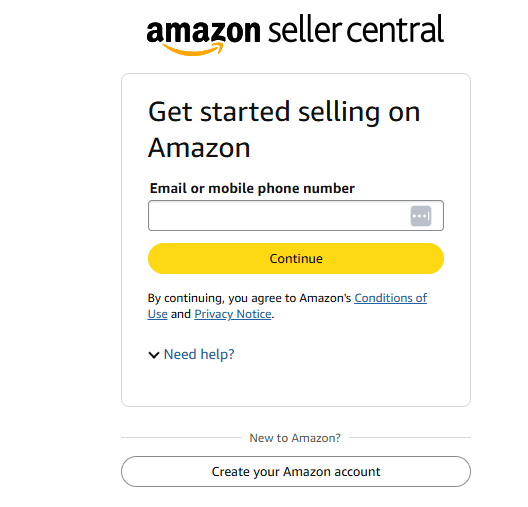
Hover over it and select A+ Content Manager from the dropdown menu. This is where you can create new A+ Content and manage existing ones. If you're a brand-registered seller, this feature is available at no extra cost. If you're not registered yet, it's worth considering, as A+ Content can significantly enhance your listings.
2. Select "Create A+ Content"
Once inside the A+ Content manager, click the "create A+ Content" button. You’ll be asked to enter a name for your project. This helps you track different content pieces, especially if you have multiple listings.
Then, you'll need to choose whether you’re creating content for a single ASIN (Amazon Standard Identification Number) or multiple ASINs. If you have variations of the same product (like different colors or sizes), selecting multiple ASINs ensures consistency across your listings.
3. Choose an A+ Content layout
Amazon provides different module-based layouts that allow you to structure your content effectively. Think of these as building blocks for your product page.
Some of the most commonly used modules include:
Module type | Purpose | Best for |
Standard image & text module | Combines images with descriptions to highlight product features | Showcasing key product details in a structured way |
Comparison chart | Compares different variations of your product or similar items | Helping customers choose the best option |
Image carousel | Displays multiple product angles, close-ups, and lifestyle images | Giving customers a better view of the product |
Four image highlights | Breaks down product features into easy-to-understand visuals | Simplifying product benefits for quick understanding |
Each Amazon A+ Content layout has its own strengths, so pick one that best tells your product's story in a compelling and informative way.
4. Upload high-quality images & graphics
Images play a crucial role in convincing customers to make a purchase. Since Amazon is a visual shopping platform, your images should be:
High-resolution (at least 2000x2000 pixels) for a clear and professional look.
Well-lit and professionally shot to effectively showcase your product’s features.
Compliant with Amazon’s guidelines, like no watermarks, no promotional messages, and a clean background if required.
Optimized with alt-text to improve SEO and accessibility for visually impaired customers.
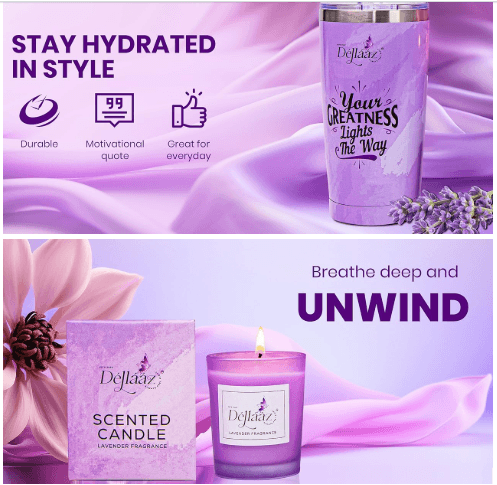
Pro tip: Use lifestyle images to show your product in action, and it helps customers visualize how they would use it in their daily lives.
5. Write engaging copy
Your A+ Content copy should be clear, engaging, and focused on benefits rather than just features. Customers want to know why they should buy your product and how it will address their specific needs and problems.
Instead of writing generic copy, follow these best practices:
Address a common problem your target audience faces.
Explain how your product solves that problem clearly and compellingly.
Use bullet points to make information easy to scan.
Avoid unnecessary fluff and keep it straightforward and to the point.

Practical example:
Before: This water bottle is made of plastic and holds 1 liter.
After: Stay hydrated throughout the day with our durable, BPA-free water bottle designed for active lifestyles. Leak-proof technology ensures no spills, and its 1-liter capacity keeps you refreshed during workouts, hikes, and daily commutes.
So, engaging copy with high-quality images is one of the best ways for your Amazon ranking optimization.
6. Add comparison charts & feature highlights
Comparison charts are a powerful way to help customers make informed buying decisions. They allow you to highlight the strengths of your product compared to competitors or showcase variations within your product line.
Here’s an example of a simple but effective comparison chart:
Feature | Product A (Example: Basic Coffee Maker) | Product B (Example: Advanced Coffee Maker) | Product C (Example: Smart Coffee Maker) |
Product Name | Basic Coffee Maker | Advanced Coffee Maker | Smart Coffee Maker |
Brew Capacity | 5 cups | 10 cups | 12 cups |
Material | Plastic | Stainless Steel | Stainless Steel & Glass |
Programmable Timer | No | Yes | Yes |
Auto Shut-Off | Yes | Yes | Yes |
Temperature Control | No | Yes | Yes (Custom Settings) |
Smart App Control | No | No | Yes (Alexa & Google Assistant) |
Warranty | 1 Year | 2 Years | 3 Years |
Best For | Simple brewing | Everyday use | Smart home integration |
Price | $XX | $XX | $XX |
Comparison charts make it easy for customers to see why your product is the best choice.
7. Preview & review content
Before publishing, double-check how your A+ Content appears on both desktop and mobile devices. Many Amazon shoppers browse on their phones, so ensure your content is easy to read and that images display correctly.
Here are common mistakes to avoid:
Too much text: Customers prefer easy-to-scan content.
Low-quality images: Blurry, pixelated photos make your product look unprofessional.
Forgetting alt-text: Always add alt-text to images for accessibility and SEO benefits.
8. Monitor & optimize A+ Content
After publishing your A+ Content, keep an eye on its performance using Amazon brand analytics and business reports.
Here’s what to track:
Conversion rate: Are more visitors buying your product after viewing your A+ Content?
Customer reviews: Do customers mention your improved descriptions in positive reviews?
Bounce rate: Are customers staying on your page longer?
If your A+ Content isn’t performing as expected, tweak it by updating images, rewriting descriptions, or refining your comparison charts.
Pro tip: Regularly update your A+ Content to reflect seasonal promotions, new features, or updated branding.
Wrap up
Visuals play a huge role in selling on Amazon. Customers trust what they see, and high-quality images, clear descriptions, and engaging A+ Content can boost sales and build brand trust. If your product page looks unprofessional or lacks details, buyers may choose a competitor instead.
But creating effective A+ Content takes time and skill. That’s where our Amazon consultants help you to optimize listings, create high-quality A+ Content, and improve conversions to help you sell more.



eStore Factory is a full-service Amazon agency dedicated to building end-to-end strategies for brands of all sizes.


SERVICES FOR AMAZON
Product Setup ON AMAZON
GRAPHICS & BRANDING SERVICES
© Copyright 2014 - 2024. All Rights Reserved.